When checking out, simply select the "New Customer" option. All you need to get started is a valid email address and a secure password of your choosing. After your purchase is complete, your account will be created, and you will immediately gain all the benefits of being an account holder. If you have previously placed an order with us as a guest, you can try using the "Forgot Password" feature under the "Sign In" tab.
Benefits of having an account:
Real-time status updates on all your orders and returns.
Ability to view detailed order history.
Eligibility to enroll in subscription items for recurring discounts.
Access to more store features and quicker customer support.
Connection to a dedicated sales representative if placing bulk orders.
Manage your account settings:
Update your email address and password.
Unsubscribe from email promotions.
Manage item subscriptions.
Delete your account and remove your information.
We respect your privacy and are committed to protecting any personal information you may provide us through our Website. View our privacy policy for more info.
How to Use Honeywell Air Purifier Settings and Controls
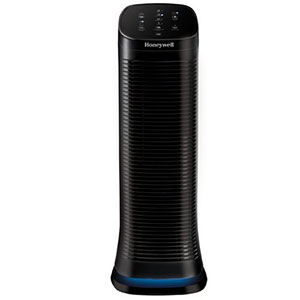
Modern Honeywell air purifiers are designed to be simple to operate, but the names, icons, and indicator lights can be confusing when you first look at the control panel. Depending on the model, you may see cleaning levels such as Germ, General Clean, Allergen, Pollen, Quiet Clean, and Turbo, along with controls for automatic cleaning, air-quality monitoring, timers, display brightness, and filter reminders.
This guide explains how to use a Honeywell air purifier and what the most common control-panel buttons mean on HPA, InSight®, and PowerPlus® models. Control names and reset procedures can vary, so always compare these general instructions with the owner's manual for your exact model.
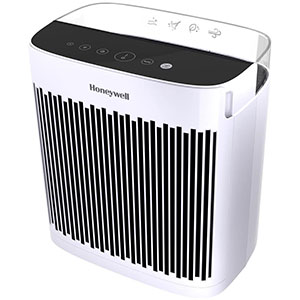
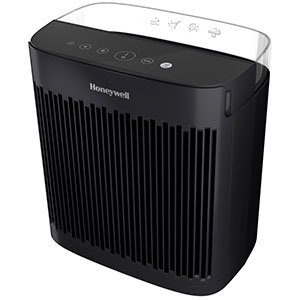
Honeywell Air Purifier Control Panel Buttons
Quick Control-Panel Reference
Button or Indicator
What It Does
When to Use It
Power / Cleaning Level
Turns the purifier on and cycles through its standard fan or cleaning levels.
Use it to select the airflow level that matches current room conditions.
Turbo
Runs the fan at its highest cleaning level.
Use after cooking, during smoke events, or when you want faster air circulation.
Auto
Allows compatible models to adjust the cleaning level in response to the VOC sensor.
Use for hands-off operation when indoor conditions frequently change.
Timer
Schedules the unit to shut off after a selected number of hours.
Use when you do not want the purifier to operate continuously.
Dimmer
Reduces or turns off most control-panel lighting without stopping the fan.
Use in bedrooms, nurseries, or dark home-theater rooms.
Filter Check / Reset
Identifies a filter-maintenance reminder and resets its runtime timer after replacement.
Use only after inspecting or replacing the indicated filter.
Some models combine the Power and Cleaning Level functions into one touch-sensitive button. Repeatedly tapping the button cycles through the available settings, while a separate Turbo button activates maximum airflow.
Understanding the Core Cleaning Levels
Honeywell cleaning-level names describe different fan speeds and suggested uses. The labels are not identical on every purifier. Traditional HPA100, HPA200, and HPA300 models commonly use Germ, General Clean, Allergen, and Turbo. Newer InSight tower models may use Quiet Clean, General Clean, Pollen, and Turbo.
Which Honeywell Cleaning Mode Should You Use?
Germ or Quiet Clean Mode
Best for: Quieter operation, overnight use, and continuous background filtration.
Germ is the lowest standard cleaning level on many traditional HPA models and is recommended by Honeywell during cold and flu season. Newer InSight models may label their quietest setting as Quiet Clean and describe it as optimized for capturing small airborne particles. Because it uses lower fan speed, this setting generally produces less sound but also circulates air more slowly than the higher settings.
General Clean Mode
Best for: Everyday household dust, routine filtration, and continuous daytime operation.
General Clean provides a balanced middle setting. It moves more air than Germ or Quiet Clean while remaining more moderate than the high-performance settings. Honeywell recommends it for general, everyday air cleaning.
Allergen or Pollen Mode
Best for: Seasonal pollen, airborne dust, pet dander, and periods when allergen levels are elevated.
Allergen is a higher cleaning level used on many HPA console models. On certain InSight tower models, the comparable setting is labeled Pollen. The increased fan speed moves more room air through the filter and is intended to improve particle-capture performance during allergy or pollen season.
Turbo Mode
Best for: Rapid air circulation, cooking odors, smoke particles, cleaning-product odors, and sudden indoor air-quality concerns.
Honeywell air purifier Turbo Mode operates the unit at its highest cleaning level. Use it when you want to process the room's air as quickly as possible. On many models, tapping Turbo a second time returns the purifier to its previously selected cleaning level.
Germ Mode vs. Allergen Mode
The main difference between Honeywell Germ Mode and Allergen Mode is fan speed and intended use. Germ Mode is the lower and quieter setting, while Allergen Mode uses faster airflow to move more particle-laden air through the filter. The names do not mean that the purifier identifies specific germs or allergens in the room. They are operating recommendations for different conditions.
For quiet overnight filtration, start with Germ or Quiet Clean. During heavy pollen conditions, pet shedding, or a noticeable increase in airborne dust, use Allergen or Pollen. Turbo provides the greatest airflow when speed is the priority.
What Does Auto Mode Mean on a Honeywell Air Purifier?
Compatible InSight and PowerPlus air purifiers include a VOC sensor and Automatic Cleaning Mode. When Auto Mode is enabled, the purifier monitors the relative level of certain gases in the surrounding air and automatically adjusts its cleaning level as conditions change.
How Automatic Cleaning Mode Works
Turn the air purifier on.
Tap the Auto or Automatic Cleaning button.
Confirm that the Auto icon illuminates on the control panel.
Allow the VOC sensor a brief period to measure the surrounding air.
The purifier will raise or lower its cleaning level as the detected VOC level changes.
Auto Mode responds to the VOC sensor rather than directly counting dust, pollen, pet dander, or other solid particles. A room can contain elevated particles even when the VOC indicator is green, so a manually selected higher setting may still be appropriate during pollen season or a smoke event.
Understanding the Honeywell InSight VOC Sensor
VOC stands for Volatile Organic Compound. VOCs are gases released by certain solids and liquids, including cleaning supplies, paint, permanent markers, new furnishings, construction materials, fragrances, and other household products.
The Honeywell InSight VOC sensor continuously samples the surrounding air and displays a green, yellow or amber, or red indicator based on the level it detects. The colors describe relative VOC conditions near the purifier; they are not a complete measurement of every indoor pollutant or a substitute for a dedicated carbon-monoxide or combustible-gas alarm.
Honeywell Air Quality Indicator Colors
Green: Good Air Quality
A green light means the sensor detects a low level of VOCs. In Auto Mode, compatible models generally remain at or move toward a lower cleaning level, such as Germ or Quiet Clean.
Yellow or Amber: Moderate Air Quality
A yellow or amber light means a moderate or noticeable level of VOCs has been detected. Auto Mode may increase the purifier to a medium cleaning level, such as General Clean.
Red: Poor Air Quality
A red Air Quality Indicator means the sensor has detected an elevated level of VOCs. Auto Mode increases the fan to an appropriate higher setting. On models that follow Honeywell's Germ, General Clean, and Allergen sequence, red corresponds to the highest standard setting, Allergen. Turbo can then be selected manually for maximum airflow and faster odor reduction.
Important: A red light is not automatically a malfunction. First determine whether it is the colored Air Quality Indicator or a separate red Filter Check light.
Why the VOC Indicator May Suddenly Turn Red
The sensor can respond to normal household activities and products, including cooking, aerosol sprays, cleaning solutions, paint, adhesives, fragrances, and newly unpacked furniture. If the light turns red, increase ventilation when appropriate, stop or remove the pollutant source, and allow the purifier to continue operating.
The indicator may not respond strongly to every odor. Odor perception and VOC sensing are different, and the sensor does not identify which chemical is present.
Why the Air Quality Indicator Changes Colors at Startup
When certain InSight and PowerPlus models are first turned on, the Air Quality Indicator may pulse or cycle through green, yellow or amber, and red while the VOC sensor calibrates. After the unit evaluates the surrounding air, the light should settle on the color that corresponds to the detected VOC level.
During this calibration period, changing colors do not necessarily indicate rapidly changing air quality or a defective sensor. Avoid spraying cleaners, fragrance products, or aerosols directly beside the purifier because concentrated vapors can temporarily influence the reading.
How to Use the Auto-Off Timer
The Auto-Off Timer allows compatible Honeywell air purifiers to operate for a limited period before shutting down. This is useful when running the purifier before bedtime, while cooking, or during a temporary air-quality concern.
Setting the 2, 4, or 8-Hour Timer
Turn the air purifier on and select the desired cleaning level.
Tap the Timer button once.
Continue tapping to cycle through the available 2, 4, and 8-hour options.
Stop when the indicator beside the desired time illuminates.
The purifier will automatically turn off when the selected period ends.
To cancel the timer, continue tapping until none of the timer settings are illuminated. Do not activate the timer when you want the purifier to run continuously.
How to Use the Control-Panel Dimmer
Bright control-panel lights can be distracting in a dark bedroom. The Dimmer button changes the display brightness without changing the fan speed or turning off the air purifier.
Honeywell Dimmer Settings
Tap the Dimmer button once to change the panel from High to Low brightness.
Tap it a second time to turn off most panel and display lights.
Tap it a third time to return the display to High brightness.
On certain InSight models, the Dimmer button itself remains faintly illuminated so the control can still be found in a dark room. The purifier continues operating normally when the other display lights are off.
What Does a Red Light Mean on a Honeywell Air Purifier?
A Honeywell air purifier red light can have two very different meanings:
Red Air Quality Light vs. Red Filter Light
Red Indicator
Meaning
What to Do
Air Quality Indicator
The VOC sensor has detected an elevated level of airborne gases.
Remove the source when possible, ventilate appropriately, or use a higher cleaning level.
Check Filter or Filter Reset
The purifier's runtime timer has reached its maintenance interval.
Inspect or replace the indicated filter, then perform the reset procedure for your model.
The filter reminder is based on accumulated operating time. It does not directly inspect the filter or automatically recognize that a replacement has been installed.
Recommended Settings for Common Situations
Everyday Honeywell Air Purifier Settings
Sleeping: Start with Germ or Quiet Clean and use the Dimmer to reduce panel lighting.
Routine daytime use: Select General Clean for balanced airflow and sound.
High-pollen day: Select Allergen or Pollen even if the VOC indicator remains green.
Pet shedding or visible dust: Use Allergen, Pollen, or another high cleaning level.
Cooking odors: Use Turbo temporarily and operate a kitchen exhaust fan when available.
Cleaning or painting: Remove or limit the VOC source, ventilate safely, and use Turbo or Auto Mode as appropriate.
Hands-off operation: Use Auto Mode when you primarily want the purifier to react to changing VOC levels.
Frequently Asked Questions
Why is my air quality indicator pulsing different colors on startup?
Compatible InSight and PowerPlus models briefly cycle through green, yellow or amber, and red while the VOC sensor calibrates and evaluates the surrounding air. Once calibration is complete, the indicator should remain on the color that represents the detected VOC level.
Will my settings save if the power goes out?
Power-restoration behavior varies by model. Do not assume that the purifier will automatically resume the same fan speed, timer, Auto Mode, or dimmer setting after an outage or after being unplugged. Once power returns, confirm that the unit is running and reselect your preferred settings when necessary.
How do I turn off the red Check Filter light after changing the filter?
The procedure depends on the product series. On many HPA100, HPA200, and HPA300 models, turn the unit on and hold the illuminated Check Filter or Check Pre-Filter button for about two seconds. On supported InSight and PowerPlus models, power the unit off, press the Filter Reset button twice within one second to reset the pre-filter timer, or hold it for two seconds to reset the HEPA timer. Use the instructions for your exact model rather than assuming every Honeywell purifier resets the same way.
Why did my Honeywell air purifier suddenly speed up?
If Auto Mode is active, the purifier may have detected an increase in VOCs and raised the cleaning level automatically. Cleaning products, fragrances, cooking, paint, adhesives, and other household sources can cause the sensor reading to change.
Why is the VOC indicator green when the room is dusty?
The VOC indicator measures certain airborne gases, not the concentration of every solid particle. Dust, pollen, pet dander, and smoke particles may still be present when the VOC indicator is green. Select Allergen, Pollen, or Turbo manually when particle conditions call for additional airflow.
Does Turbo Mode turn off automatically?
Turbo behavior can vary by model, but on many Honeywell HPA and InSight units, Turbo continues operating until you tap the Turbo button again, choose another cleaning level, turn off the purifier, or use an active Auto-Off Timer. Check the owner's manual before leaving the unit unattended for an extended period.
Does turning off the display also turn off the air purifier?
No. The Dimmer changes the brightness of the control-panel lights while the fan and filtration system continue operating at the selected cleaning level. On some models, one control remains faintly illuminated so you can locate it in a dark room.
Should I leave my Honeywell air purifier in Auto Mode all the time?
Auto Mode is useful for responding to changing VOC levels, but it may not always select the fan speed you prefer for pollen, dust, pet dander, or smoke particles. Use Auto for convenient everyday operation and manually choose Allergen, Pollen, or Turbo when faster particle filtration is needed.
Explore Honeywell air purifier guides to troubleshoot common questions, find compatible replacement filters, and create a cleaner and more comfortable indoor environment.
Contact options may differ depending on the type of help you need.
Cookie Preferences
This site uses a small number of cookies to provide a secure and reliable shopping experience.
Required cookies are set directly by this site and are used only for essential store functions such as maintaining your shopping cart, processing checkout, providing security, and keeping the site working properly. We also use optional Google cookies for website analytics and advertising measurement. You can choose whether to allow these Google cookies below.
Required Cookies
These cookies are necessary for essential website functions, including your shopping cart, checkout, site security, and maintaining your shopping session. These cookies are set directly by this site and cannot be disabled.
Always Active
Google Analytics & Advertising Cookies
We use Google services to understand how customers use this site, improve site performance and navigation, and measure the effectiveness of our advertising. These cookies are optional. Turning them off will not affect your ability to browse, shop, or complete an order.
Learn more about how we protect your information in our Privacy Policy.