

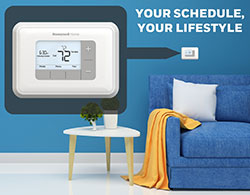





Thermostat Guides and Support
Find Honeywell thermostat support for choosing the right model, installation, wiring, programming, troubleshooting, battery replacement, resets and everyday use.
Related Topics:
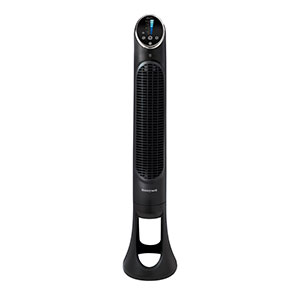

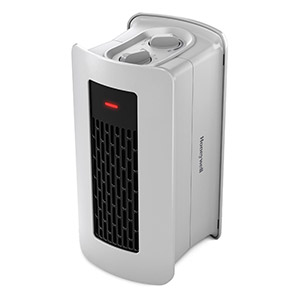





Learn how to program a Honeywell thermostat, adjust daily temperature settings, use hold features and set a heating or cooling schedule that fits your routine.
If you are wondering how to set Honeywell thermostat schedules or how do you adjust a Honeywell thermostat without disrupting the entire program, this guide can help. Many Honeywell thermostats allow you to create comfort settings for different times of day, while smart models may also let you make changes from an app.
Programming steps can vary by model, so always refer to the manual for your specific thermostat. However, most programmable and smart thermostats follow the same basic ideas: choose your system mode, set your preferred temperatures, create schedule periods and decide when to use temporary or permanent holds.
Before changing your thermostat schedule, confirm that the thermostat is installed, powered and controlling your HVAC system correctly. Set the thermostat to the correct mode, such as Heat, Cool or Auto, depending on your model and current comfort needs.
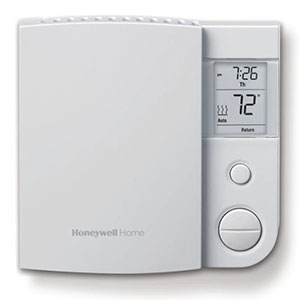
Most Honeywell thermostats let you adjust the temperature using arrow buttons, touchscreen controls or a connected smart app. A quick temperature change may not always rewrite your full schedule. Depending on the model, it may create a temporary hold, permanent hold or manual override.
A temporary hold lets you change the temperature for a short period without deleting your programmed schedule. The thermostat will usually return to the next scheduled period automatically.
A permanent hold keeps the thermostat at the temperature you select until you manually cancel the hold or resume the schedule. This is helpful for vacations, unusual routines or times when you do not want the normal schedule to run.
Run Schedule, Resume Schedule or a similar option tells the thermostat to stop holding a manual temperature and return to the programmed heating or cooling schedule.
A thermostat schedule helps your system automatically adjust temperatures throughout the day. Instead of manually changing the thermostat every morning and night, you can create set periods that match your normal routine.
Many programmable Honeywell thermostats use common schedule periods such as Wake, Leave, Return and Sleep. Some models allow different schedules for every day of the week, while others use weekday and weekend programming.
A 7-day schedule gives you the most flexibility because each day can have its own program. This is useful if your weekday and weekend routines are different or if your schedule changes throughout the week.
A 5-2 day schedule separates weekdays from weekends. This is a good option if your Monday through Friday routine is mostly the same, but Saturday and Sunday need different comfort settings.
Manual thermostat controls are helpful when you need a quick comfort change. For example, you may want the house warmer on a cold morning or cooler during unexpected indoor heat. The key is knowing whether the change is temporary or permanent.
Smart Honeywell thermostats may allow you to adjust temperatures, change schedules and manage settings from a connected app. This can be useful when you are away from home, changing your routine or fine-tuning comfort settings without standing at the thermostat.
When using a smart app, make sure the schedule saved in the app matches the schedule shown on the thermostat. If the thermostat is offline, recently reset or not paired correctly, app changes may not apply as expected.
If a scheduled setting does not start at the expected time, confirm the thermostat time, time zone, system mode, hold status and Wi-Fi connection.
Programming your thermostat is not only about setting a temperature. It is about matching comfort settings to the times you are home, away and asleep. Small adjustments can make the thermostat easier to use while helping your HVAC system run more consistently.
To clear a Hold message, look for an option such as Run Schedule, Cancel Hold, Resume or Run Program. Selecting that option should return the thermostat to its programmed schedule. The exact wording may vary by model.
Adjust the temperature using the thermostat buttons, touchscreen or smart app. Choose a temporary hold if you only want the change to last until the next schedule period, or choose permanent hold if you want the override to stay active until you cancel it.
A scheduled setting may not start if the thermostat is in Hold mode, the date or time is incorrect, the system mode is wrong, the schedule was not saved or a smart thermostat is offline. Check those settings first.
Use the up and down buttons, touchscreen controls or connected app to raise or lower the set temperature. After adjusting, check whether the thermostat shows Temporary Hold, Permanent Hold or Run Schedule so you know how long the change will last.
Temporary hold keeps your selected temperature for a limited time, usually until the next scheduled period. Permanent hold keeps the selected temperature active until you manually cancel the hold or resume the schedule.
Use the 5-2 day schedule option if your thermostat supports it. Program Monday through Friday with one set of Wake, Leave, Return and Sleep periods, then program Saturday and Sunday with a separate weekend schedule.
Yes, many 7-day programmable thermostats allow each day to have its own schedule. This is useful if your routine changes throughout the week. Check your model settings for 7-day programming or copy schedule options.
Your thermostat may be following a programmed schedule, smart setting or app-based adjustment. Review the schedule, hold status and connected app settings to see what is controlling the temperature change.
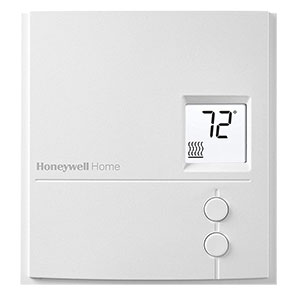
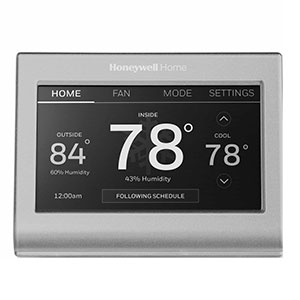
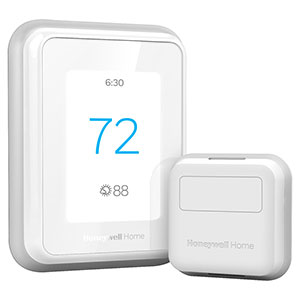
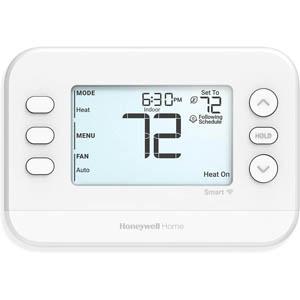
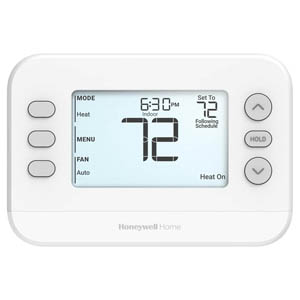
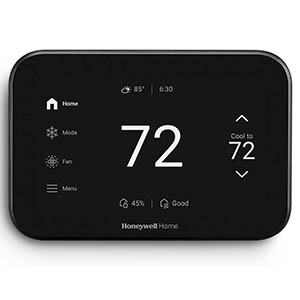
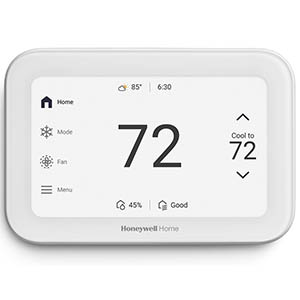
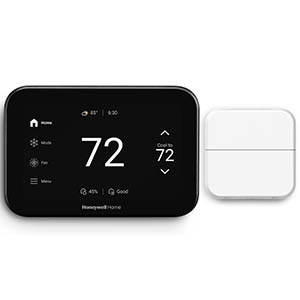
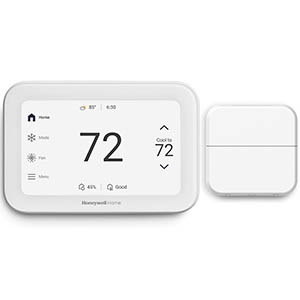
Explore related support articles and resources for this topic.
Find Honeywell thermostat support for choosing the right model, installation, wiring, programming, troubleshooting, battery replacement, resets and everyday use.
Contact options may differ depending on the type of help you need.