




Thermostat Guides and Support
Find Honeywell thermostat support for choosing the right model, installation, wiring, programming, troubleshooting, battery replacement, resets and everyday use.
Related Topics:


Learn how to reset a Honeywell thermostat, clear schedules, reset Wi-Fi settings, restart older models and understand when a full factory reset is the right option.
A Honeywell thermostat reset can help resolve certain setup issues, clear unwanted schedules, reconnect Wi-Fi or return the thermostat to its original settings. However, not every reset does the same thing. A schedule reset may only clear programmed times and temperatures, while a Wi-Fi reset removes network information. A full factory reset Honeywell thermostat process may erase system settings, installer configuration and custom preferences.
Because Honeywell and Honeywell Home thermostats include many different generations, reset steps can vary by model. Use this guide as a general troubleshooting reference, then confirm the exact reset Honeywell home thermostat instructions in the manual for your specific model.
Before resetting Honeywell thermostat settings, decide what problem you are trying to solve. If the thermostat is only holding the wrong temperature, you may not need a full reset. If the thermostat will not connect to Wi-Fi, a Wi-Fi reset may be better than erasing all thermostat settings.
Use a factory reset only when needed. If your thermostat was professionally installed, a factory reset may require the HVAC system type and advanced installer settings to be configured again.
A factory reset can erase more than comfort settings. Depending on the model, it may clear HVAC equipment type, heat pump configuration, staging, reversing valve settings, Wi-Fi credentials, app pairing, schedules and temperature preferences.
If your thermostat controls a heat pump, auxiliary heat, multi-stage system, dual-fuel system or zone panel, do not perform a full factory reset unless you know how to re-enter the correct installer setup values.
If you are unsure, try a schedule reset, Wi-Fi reset or simple restart first. Contact an HVAC professional if the system configuration is unclear.
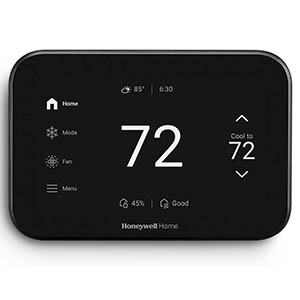
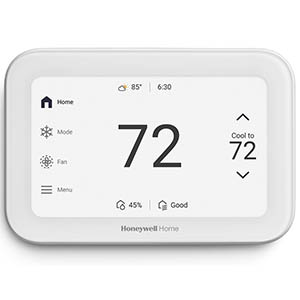
Smart and touchscreen Honeywell thermostats, including many T6 Pro, Smart Color and Lyric-style models, usually place reset options inside the on-screen menu. The exact menu names may vary, but reset options are commonly found under Menu, Settings, Preferences, Advanced Settings or Reset.
On some models, the reset option may appear under Menu > Preferences > Restore Factory Defaults or Menu > Reset. Always follow the wording shown on your thermostat screen.
Honeywell T6 reset instructions can differ depending on whether you have a T6 Pro programmable model, T6 Pro Wi-Fi model or another T-series thermostat. Many T6-style models include reset options in an advanced menu rather than a simple front-screen reset button.
If your thermostat offers a factory reset option, use it carefully. A factory reset may clear installer settings that are required for your HVAC system to operate correctly.
Programmable push-button Honeywell thermostats, including many older 5000 and 6000 series models, may use button combinations, setup menus or battery reset methods. These models may not have a touchscreen menu, so reset steps can be more model-specific.
Do not guess through installer setup codes. If you are not sure which function controls reset settings, check the manual for your exact thermostat model.
Some battery-powered programmable models may restart or clear temporary issues by removing the batteries. Certain older Honeywell thermostat reset methods also mention reinstalling batteries backward for a short period to drain residual power, then reinstalling them correctly.
Use this method only for battery-powered models where the battery compartment design supports it. Do not force batteries, use damaged batteries or attempt this on hardwired-only thermostats.
If you are searching for how to reset Honeywell thermostat old model instructions, your thermostat may not have a modern reset menu. Older classic digital thermostats often rely on battery removal, power cycling or simple schedule clearing rather than a full on-screen factory reset.
If the screen remains blank after fresh batteries and reattachment, the issue may be HVAC power, wall plate connection, wiring, a blown fuse or thermostat failure rather than a reset problem.
Choosing the correct reset can save time and prevent unnecessary setup work. If you only need to clear a schedule, do not perform a full factory reset. If you only changed your router, use a Wi-Fi reset instead of erasing thermostat equipment settings.
A schedule reset clears programmed times and temperatures, such as Wake, Leave, Return and Sleep periods. This is useful when the thermostat keeps changing temperature based on an old routine.
A Wi-Fi reset clears saved network information so the thermostat can connect to a new router, password or home network. This is often the best reset when a smart thermostat is offline or connected to an old network.
A factory reset restores the thermostat to default settings. Depending on the model, it may erase schedules, Wi-Fi, preferences, app pairing and installer configuration. Use this option only when you are prepared to set the thermostat up again.
If your main issue is that the thermostat keeps changing temperature at the wrong times, you may only need to clear or edit the schedule. Learning how to clear schedule on Honeywell thermostat models is usually safer than performing a full factory reset.
If your thermostat does not offer a clear schedule option, you may be able to overwrite each period with your preferred times and temperatures.
A Wi-Fi reset is useful when you replace your router, change your network password, move into a new home or need to remove old network credentials from the thermostat.
If Wi-Fi setup fails, check that the thermostat is within range of the router and that the network password is entered correctly.
A reset can help with certain software, schedule or connection issues, but it will not repair wiring problems, dead batteries, blown fuses, tripped breakers, HVAC equipment faults or incompatible thermostat installations.
If the thermostat still does not work after these checks, contact an HVAC professional or Honeywell Home support for model-specific troubleshooting.
Yes, it can. Depending on the thermostat model, a factory reset may clear installer setup values such as system type, heat pump settings, staging, reversing valve configuration and other HVAC equipment settings. Use a factory reset carefully, especially if the thermostat was professionally installed.
A blank screen may be caused by dead batteries, incorrect battery placement, a loose wall plate connection, no HVAC power, a tripped breaker, an open furnace access panel, a blown low-voltage fuse or a wiring issue. A reset will not fix a power problem.
Look for a button or menu option such as Run Schedule, Cancel Hold, Resume, Run Program or Use Schedule. This usually clears the hold and returns the thermostat to the programmed schedule without deleting your saved settings.
Restarting usually means power cycling the thermostat to refresh it without intentionally erasing settings. Resetting usually means clearing a specific category of settings, such as Wi-Fi, schedule or factory defaults.
Older Honeywell thermostat reset steps vary by model. Many classic battery-powered digital models can be restarted by removing the batteries, waiting 10 to 15 seconds and reinstalling fresh batteries correctly. Some compatible older models may use the brief reverse-battery method, but always check the manual first.
A schedule reset will erase or restore programmed schedule periods. A full factory reset may also erase the schedule along with other settings. A simple restart or Wi-Fi reset should not normally be used just to erase schedules.
Not always. First check the system mode, set temperature, batteries, breaker, furnace switch, access panel and wiring. If the thermostat is powered and configured correctly but still behaves incorrectly, a restart or model-specific reset may help.
Many T6-style thermostats place reset options in an advanced menu. Depending on the model, press or hold Menu, scroll to Reset and choose Schedule, Wi-Fi, HomeKit or Factory reset. Follow the exact prompts shown on your thermostat screen.
Yes, many Honeywell smart thermostats offer a Wi-Fi reset or change network option. This clears or updates network credentials without necessarily erasing schedules or HVAC installer settings.
Avoid a factory reset if you do not know your HVAC system type, have a heat pump with auxiliary heat, use a multi-stage system or are unsure how the thermostat was configured. A factory reset may require those setup values to be entered again.
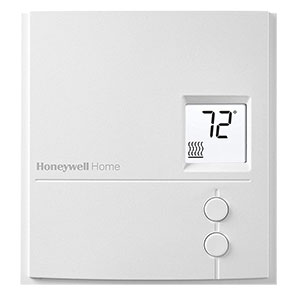
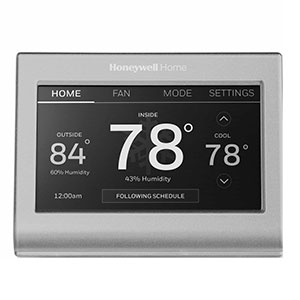
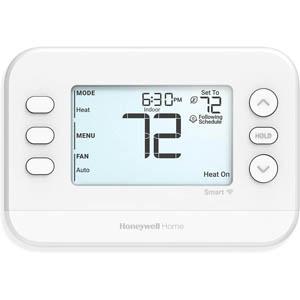
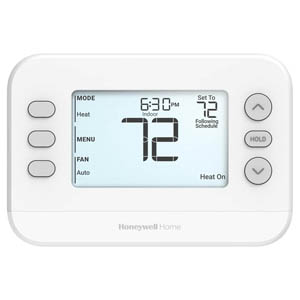
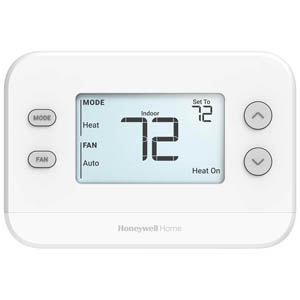
Explore related support articles and resources for this topic.
Find Honeywell thermostat support for choosing the right model, installation, wiring, programming, troubleshooting, battery replacement, resets and everyday use.
Contact options may differ depending on the type of help you need.